
How to connect PrestaShop
Set up the PrestaShop integration with RetJet step by step. Covers creating an API key and granting read-only permissions.
PrestaShop exposes data through a webservice that’s disabled by default. You need to enable it and generate a key with read access to orders. RetJet doesn’t write anything to the store.
Generate an API key in PrestaShop
- Go to the PrestaShop admin panel.
- Go to ‘Configure’ > ‘Advanced Parameters’ > ‘Webservice’.
- Click ‘Add new API key’.
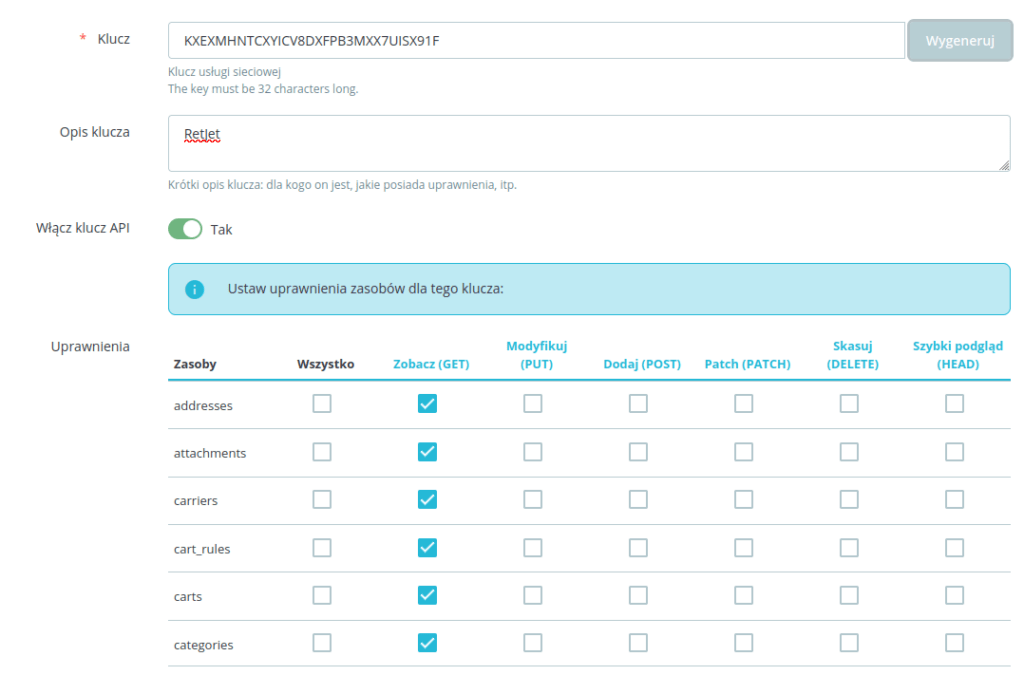
- Click the ‘Generate’ button.
- Give it a name, for example RetJet.
- Enable the key.
- Set read permissions (View (GET)) for every resource.
- Save the key.
Connection issues with Cloudflare
If you get a 403 Forbidden error despite correct configuration:
- check your Cloudflare settings, which often block requests to the API (bot fight mode),
- add a security rule that allows RetJet access to the API.
Download the module from GitHub (RetJet PrestaShop module)
To make integration easier, a free module for PrestaShop is available.
Don’t have a RetJet account yet? Create a free account.